
Instagram isn’t for everyone. If the latest changes on Instagram aren’t what you’re looking for, this step-by-step guide on how to delete your Instagram account is just for you.

Once you click this button, your profile, photos, videos, comments, likes, and followers will be permanently removed from the app.
Before you proceed, keep in mind that deleting your account cannot be undone. Make sure to back up your account data, write personal notes to engaged followers, and update your analytics. If you are deleting a business Instagram account, you may want to create an archive for SEC or FINRA just to be safe.
Packages for Influencers -> Instagram followers and likes, views of the highest quality for your profile!
Now, if you’re ready, start following these simple instructions or jump to the section you’re looking for below:
How to Delete Instagram on iPhone
- Log in to the Instagram app on your iPhone.
- Go to your account and tap the menu in the upper left corner of your profile.
- Go to “Settings” > “Account”.
- Scroll down the list of options and select “Delete Account”.
- Scroll past the “Deactivate Account” button and tap “Delete Account”.
- Click the “Continue Deleting Account” button.
- Select an option from the “Why do you want to delete your account?” dropdown menu.
- Re-enter your password.
- Click the ‘Delete’ button.
1. Log in to the Instagram app on your iPhone.
2. Go to your account and tap the menu in the upper left corner of your profile.
3. Go to “Settings” > “Account”.
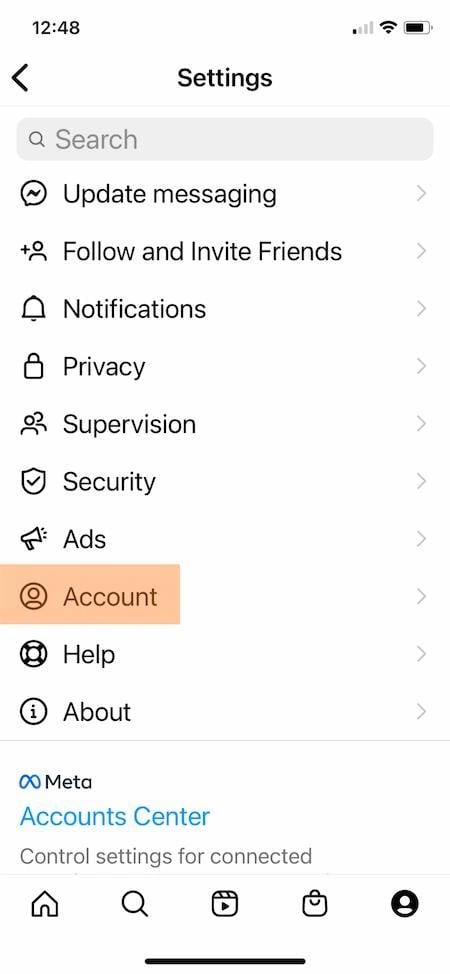
4. Scroll down the list of options and select “Delete Account”.
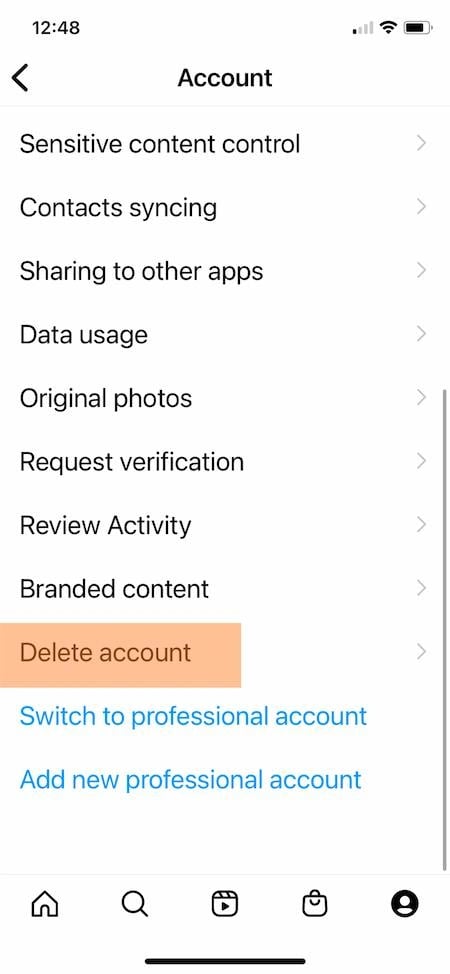
5. This section contains two options from Instagram. First, you can deactivate your account. If you deactivate your account, Instagram will hide it, but you can reactivate it at any time. You can find more information about this option below.
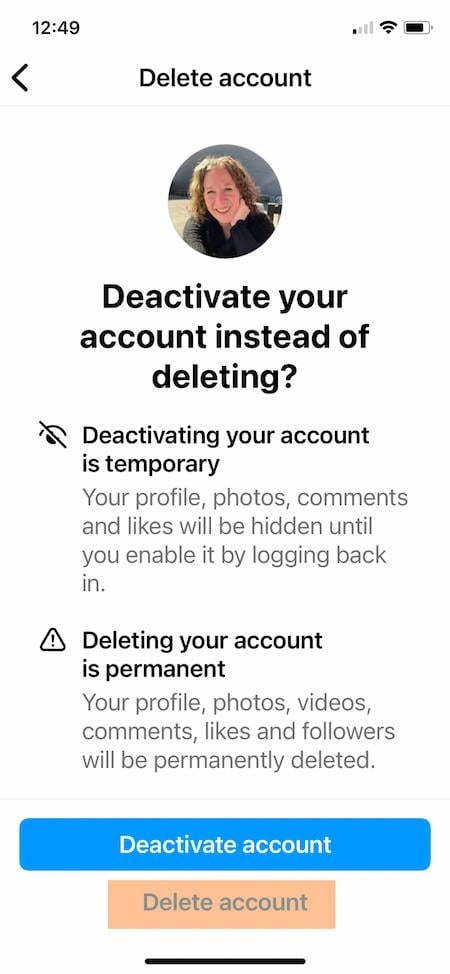
If you still want to delete your Instagram account, scroll past the “Deactivate Account” button and click “Delete Account”.
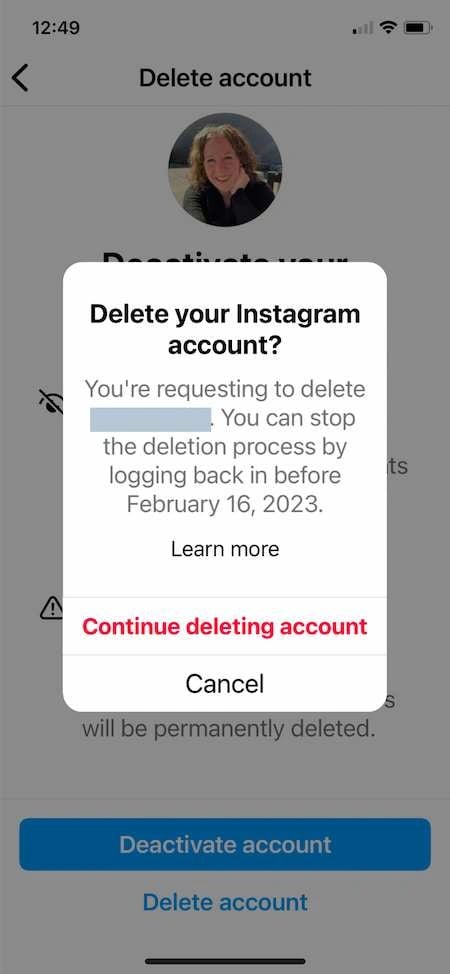
6. A pop-up window will appear stating the deadline by which you must reactivate your account if you change your mind after deletion. Click the ‘Continue Deleting Account’ button.
7. This section begins with a dropdown menu: “Why do you want to delete your account?” Select the best option.
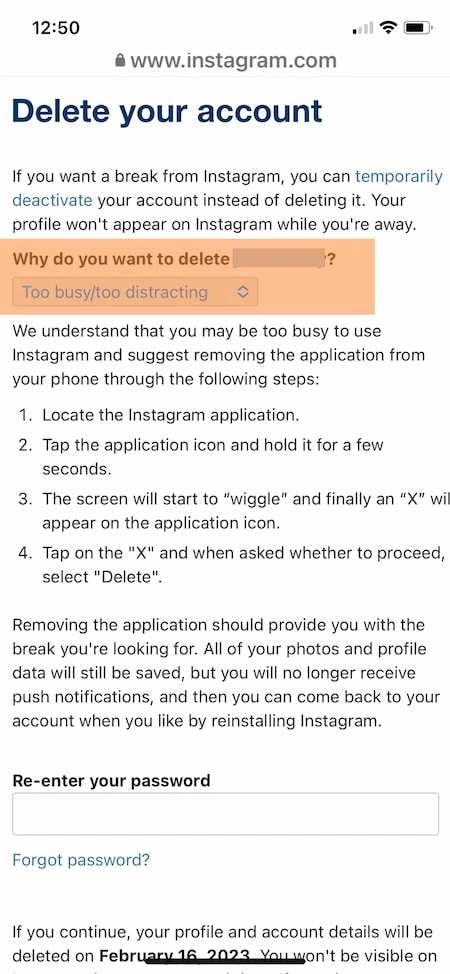
After making your selection, Instagram will offer additional recommendations related to your choice. For example, if you choose “Too busy/distracting,” instructions will appear for temporarily removing the app from your phone.
8. Continue scrolling, then re-enter your password.
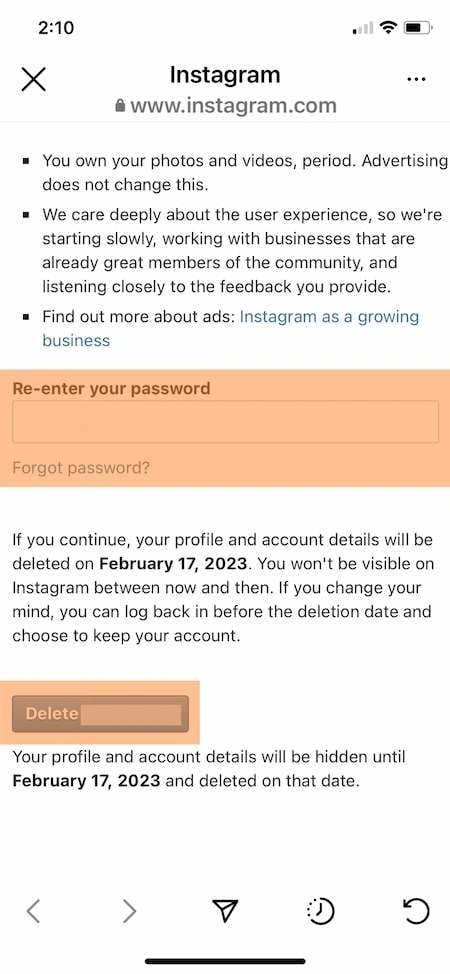
9. Click the “Delete” button.
Once this step is complete, your Instagram account will no longer be accessible. If you change your mind, you have 30 days to reactivate it. After that, your account will be permanently deleted.
How to Permanently Delete Instagram on Android
The Instagram app on Android does not allow you to delete your account from the mobile app. However, you can open Instagram in a browser and delete your account that way.
How to Delete Your Instagram Profile on a Desktop Computer
- Log in to Instagram.com.
- Type https://instagram.com/accounts/remove/request/permanent/ into your browser’s address bar.
- Select an answer to “Why do you want to delete your account?” from the dropdown menu.
- Re-enter your password.
- Delete your account.
1. Log in to Instagram.com from a web or mobile browser.
2. Type https://instagram.com/accounts/remove/request/permanent/ into your browser’s address bar. You cannot navigate to this page from Instagram.com, so you must enter this address directly after logging in.
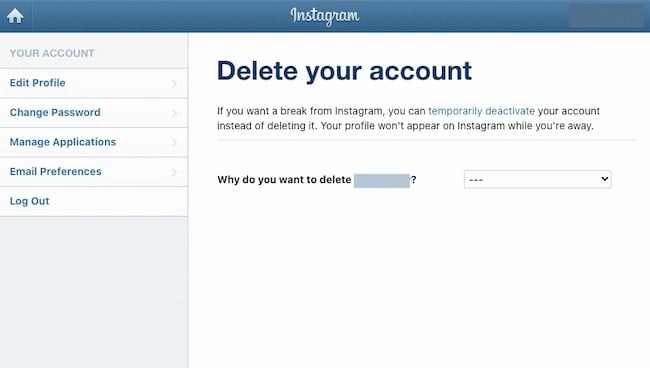
3. Once you are on the page, select an answer to “Why do you want to delete your account?” from the dropdown menu.
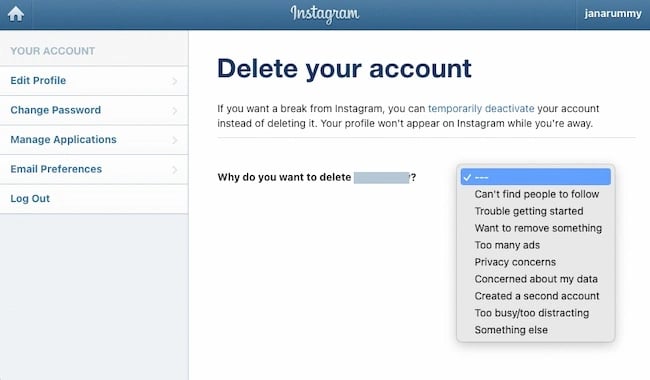
4. After selecting your answer, you will be prompted to re-enter your password.
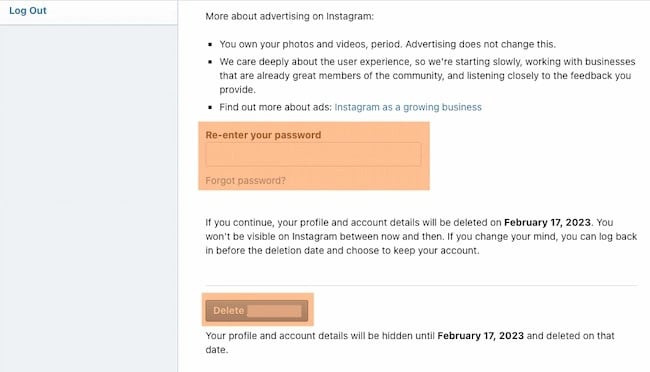
5. You will be prompted to permanently delete your account.
How to Deactivate the Instagram App
- Log in to Instagram.com.
- Click the person icon in the upper right corner.
- Click “Edit Profile” on your profile.
- Scroll to “Temporarily disable my account.”
- Select an answer to “Why are you disabling your account?” from the dropdown menu.
- Re-enter your password.
- Click the “Temporarily Disable Account” button.
1. Log in to Instagram.com from a web or mobile browser. You can also disable your account on an iPhone. You cannot disable your account in the Instagram app on Android.
2. Tap the person icon in the upper right corner to go to your profile.
3. On your profile, click the “Edit Profile” button.
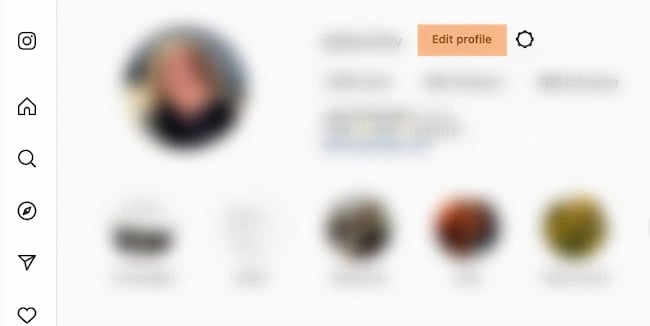
4. Scroll down until you see the option “Temporarily deactivate my account”.
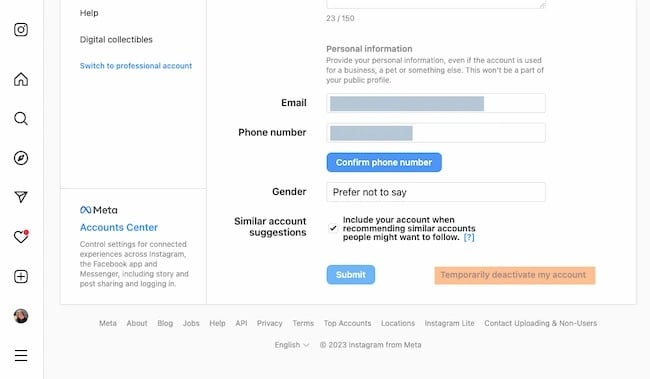
5. Once you are on the page, select an answer to the question “Why are you deactivating your account?” from the dropdown menu.
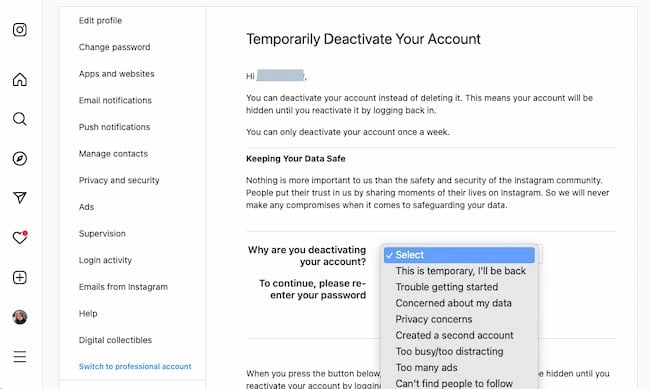
6. After selecting your answer, you will be prompted to re-enter your password.
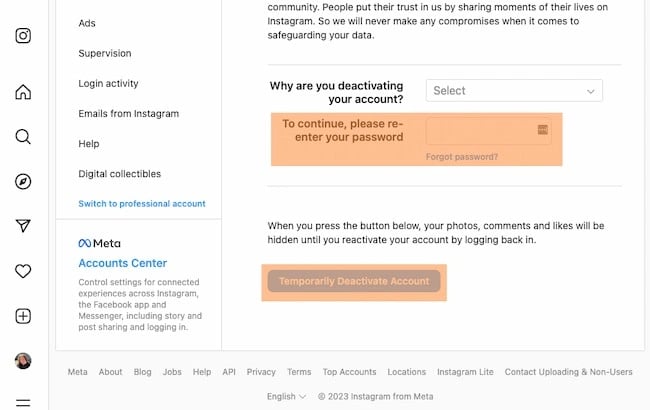
7. You will be prompted to temporarily deactivate your account.
Why delete Instagram?
Instagram is one of the most popular apps in the world for many reasons. However, if it doesn’t work for you, you can simply delete your profile.
Perhaps you’ve found that it doesn’t suit your audience or growth goals. Or you’re streamlining your professional accounts to reduce duplicate messaging or overwhelmed management.
Regardless of why you’ve decided to cut back on Instagram, you have the resources you need. Check out the pages
Packages for Influencers -> Instagram followers and likes, views of the highest quality for Your profile!
If you want results right away, you can get the Instagram followers and likes package right now.






Michal Záruba is a digital marketing specialist and a consultant in social media and SEO. For more than 8 years, Michal has been helping brands grow online through strategic content, search engine optimisation and effective communication on platforms such as LinkedIn, Instagram and YouTube.
On the blog, Michal shares practical tips on how to combine SEO, social media and brand building into one working strategy, focusing on how companies can use modern tools and algorithms so that their brand gains not only reach but also trust.
Alongside creating content, Michal lectures on digital marketing, trains teams and follows new trends in AI and search.